 Artix
Artix
A huge thank you to all of the Kickstarter Backers who made this possible. Today, we are excited to begin our 1st Alpha Test of the Android Version of the game. This test will be for the most tech savvy of our backers... because it requires you to manually "side-load" an APK file of the game onto your Android Device. This is also how you will install updates during the Alpha. If this is not something you are comfortable doing, do not worry... this is just for this early testing phase. The game will ultimately be released on the official App Stores for you.
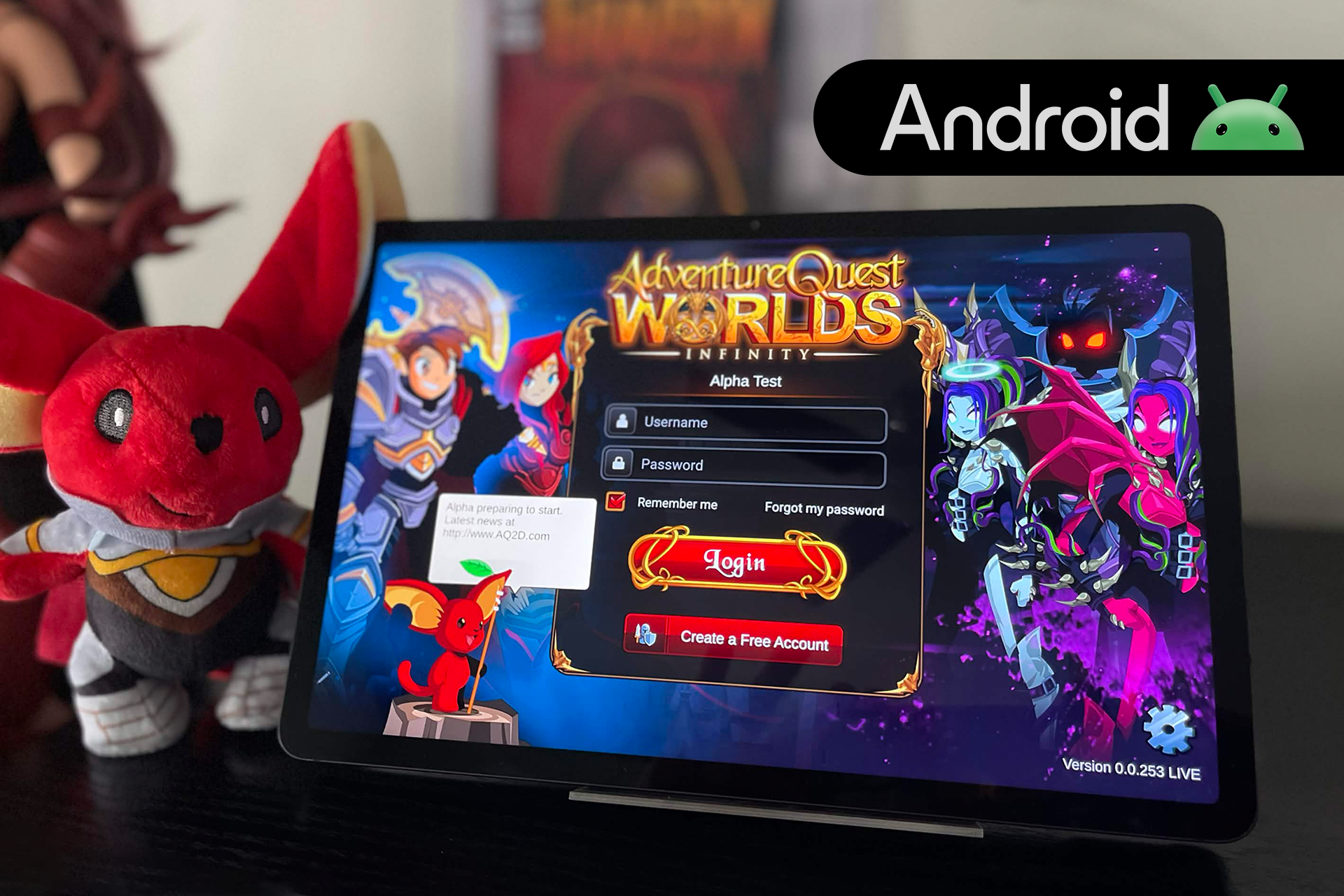
The Android alpha is supplied as an APK file, which must be installed manually. This is called “sideloading.”
Important: Only download the APK from the official alpha-test link supplied by Artix Entertainment below. Please do not share or redistribute the APK or download link.
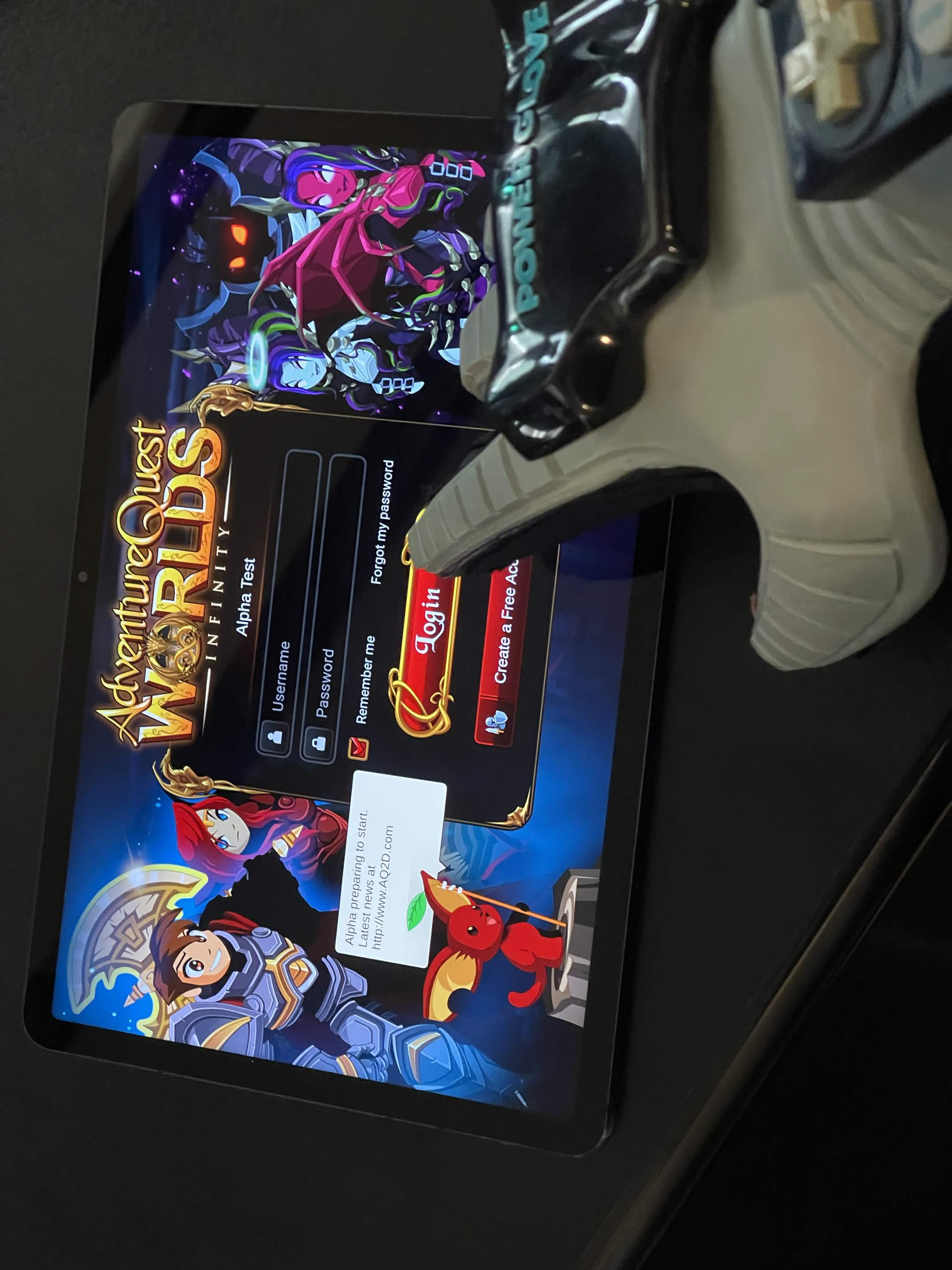
This Alpha Test is for tech savvy users who are comfortable side-loading apps onto their Android device.
If you are not comfortable doing this... or are even a little bit uneasy... please just wait for when we do the official release on the actual app store. There is no pressure to join in this early alpha phase of Android testing. You and your fellow backers will not miss out on any items, achievements, or anything if you choose to skip this and wait for the official release. We anticipate a lot of things to break. But if you are brave and want the full "alpha experience", we invite you to join us for absolute chaos on Android by following the instructions below.....
You will need...
Because this is an alpha build, you may encounter bugs, crashes, unfinished features, or performance issues. Your game settings may also be reset between test builds.
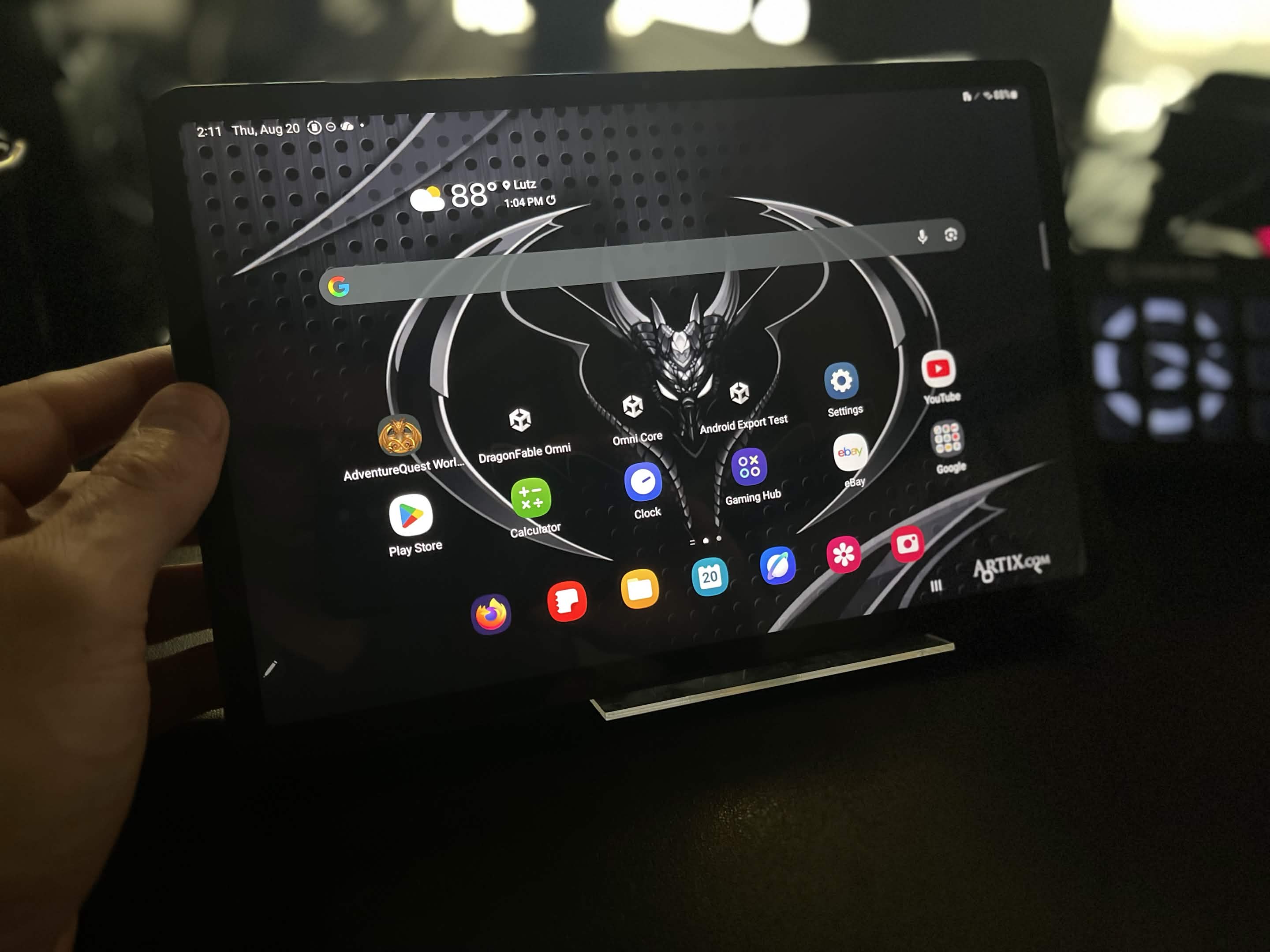
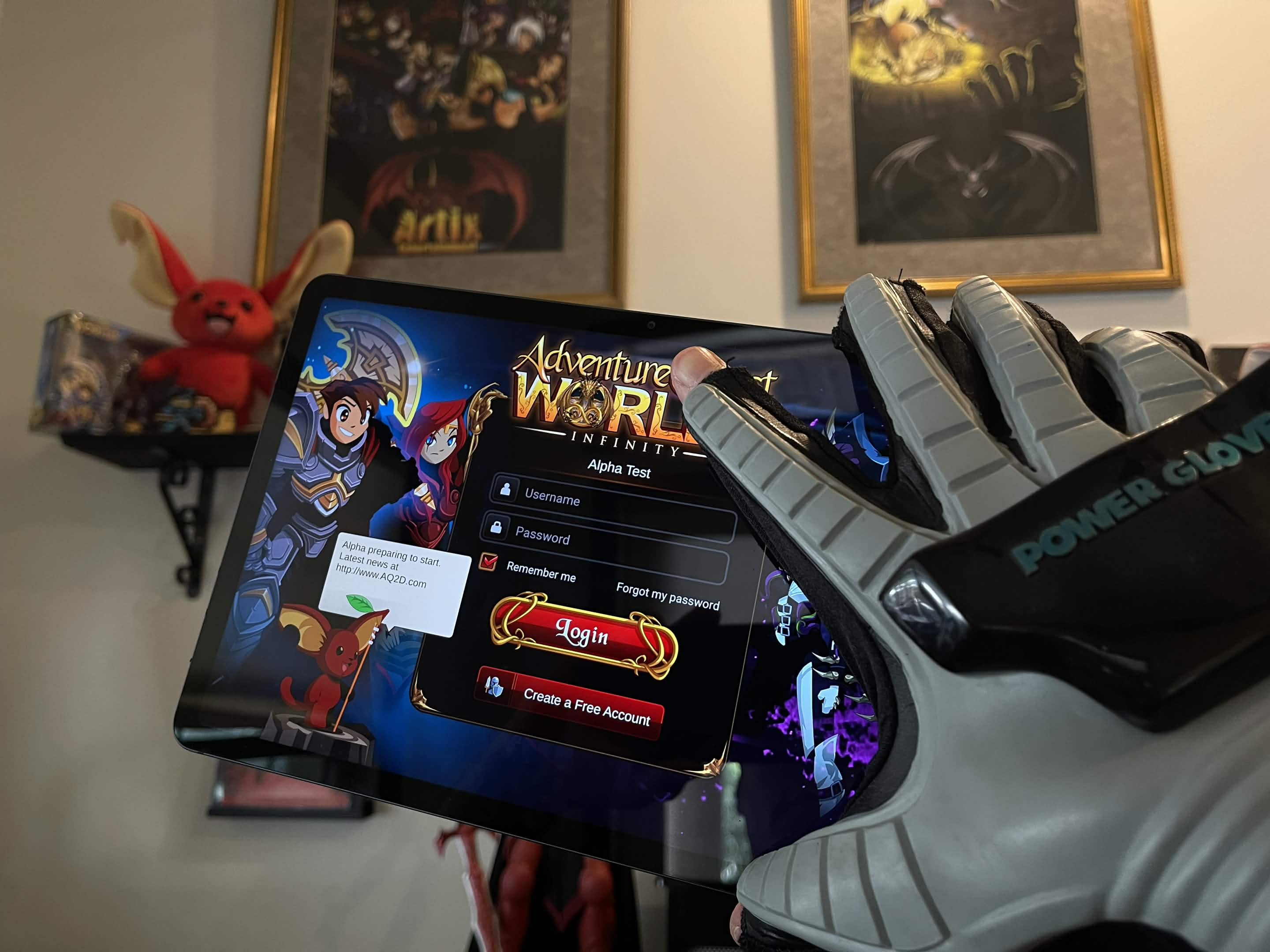
I am going to walk you through the process by side-loading the game on my trusty Android Tablet here in my computer room where that insane gift from Japan is. You know, the gift that was teased in the last post that was from someone I deeply admire and respect... and may have mentioned him by name in that interview that has been floating around this past week.
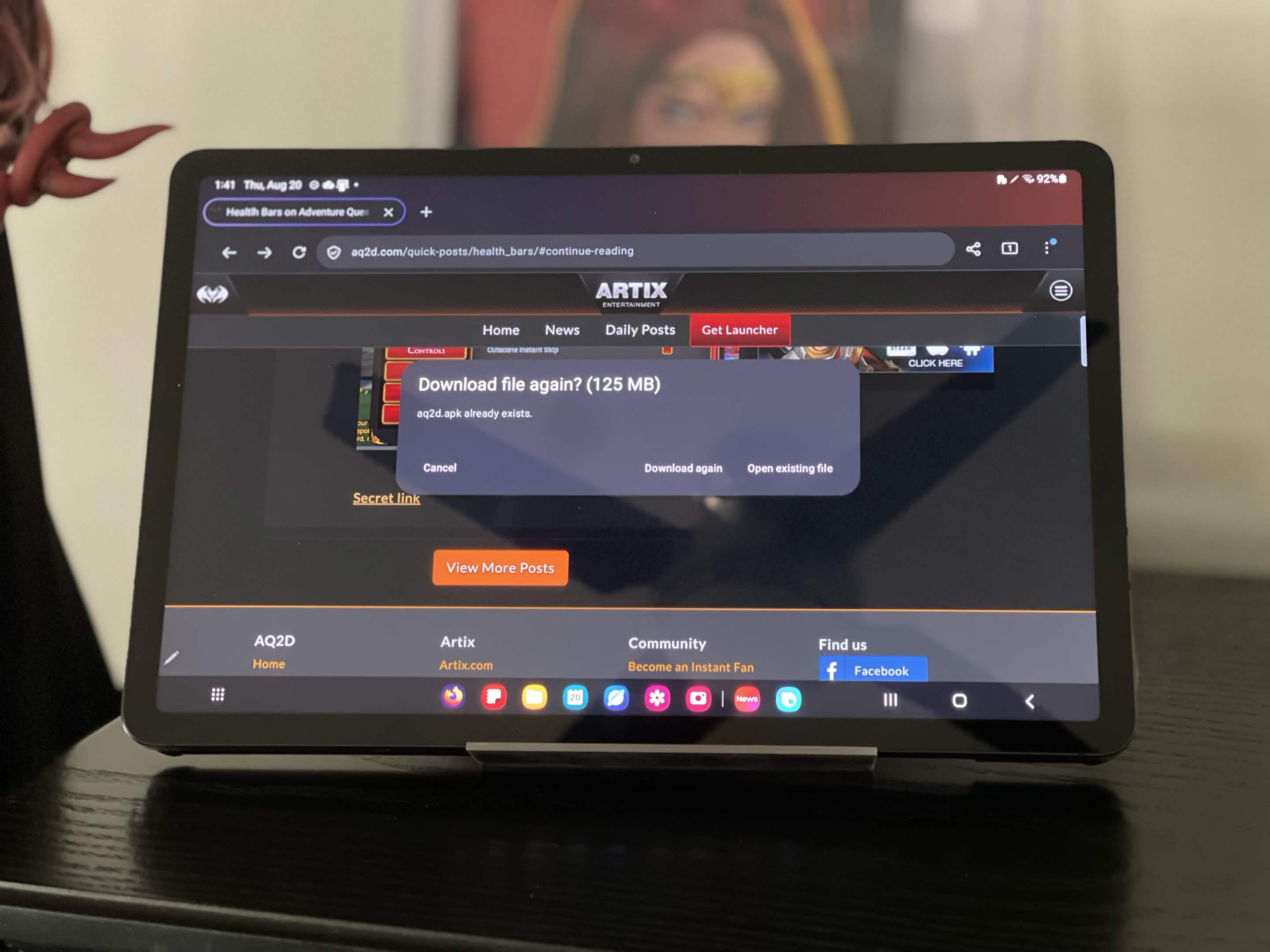
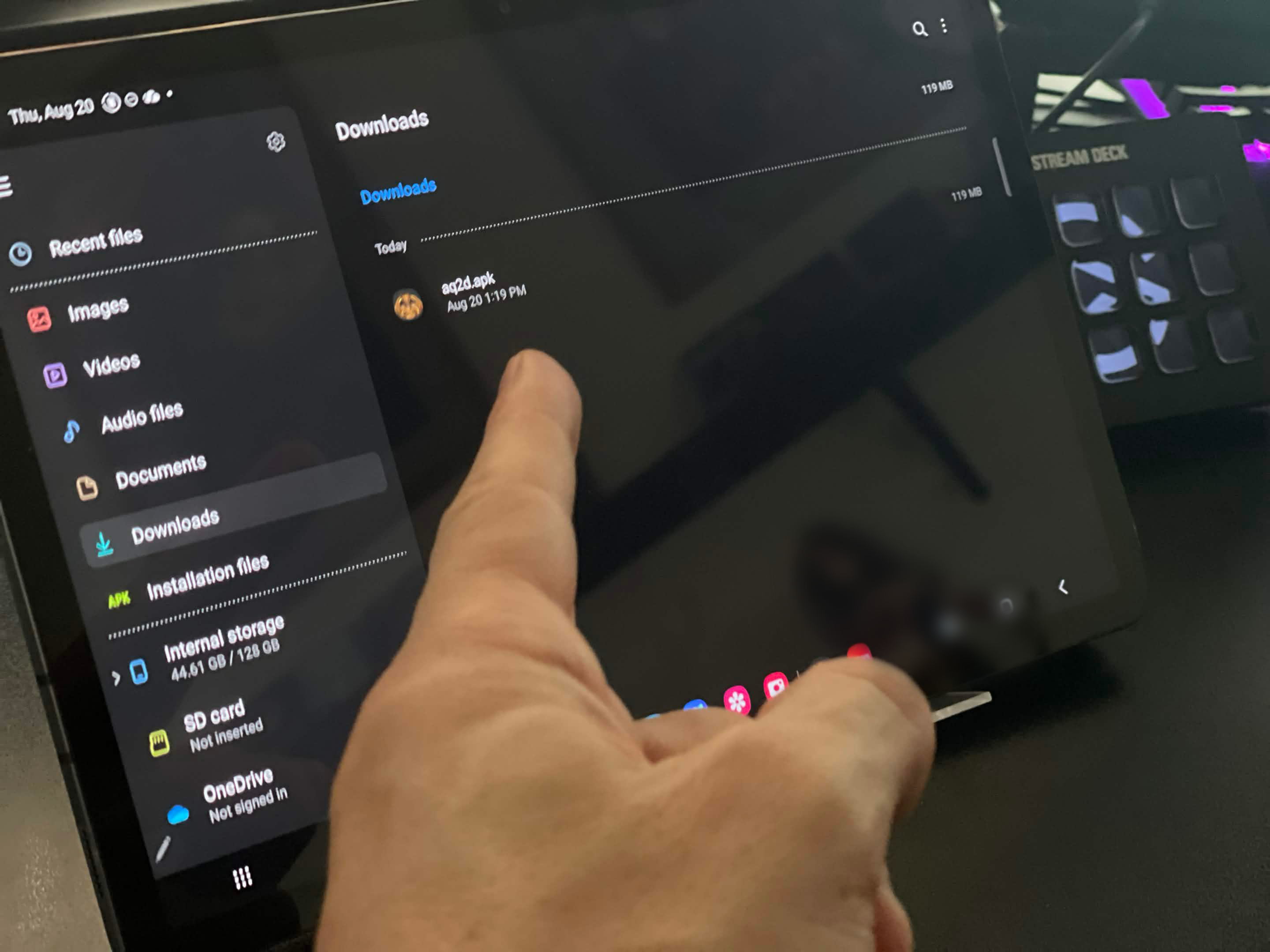
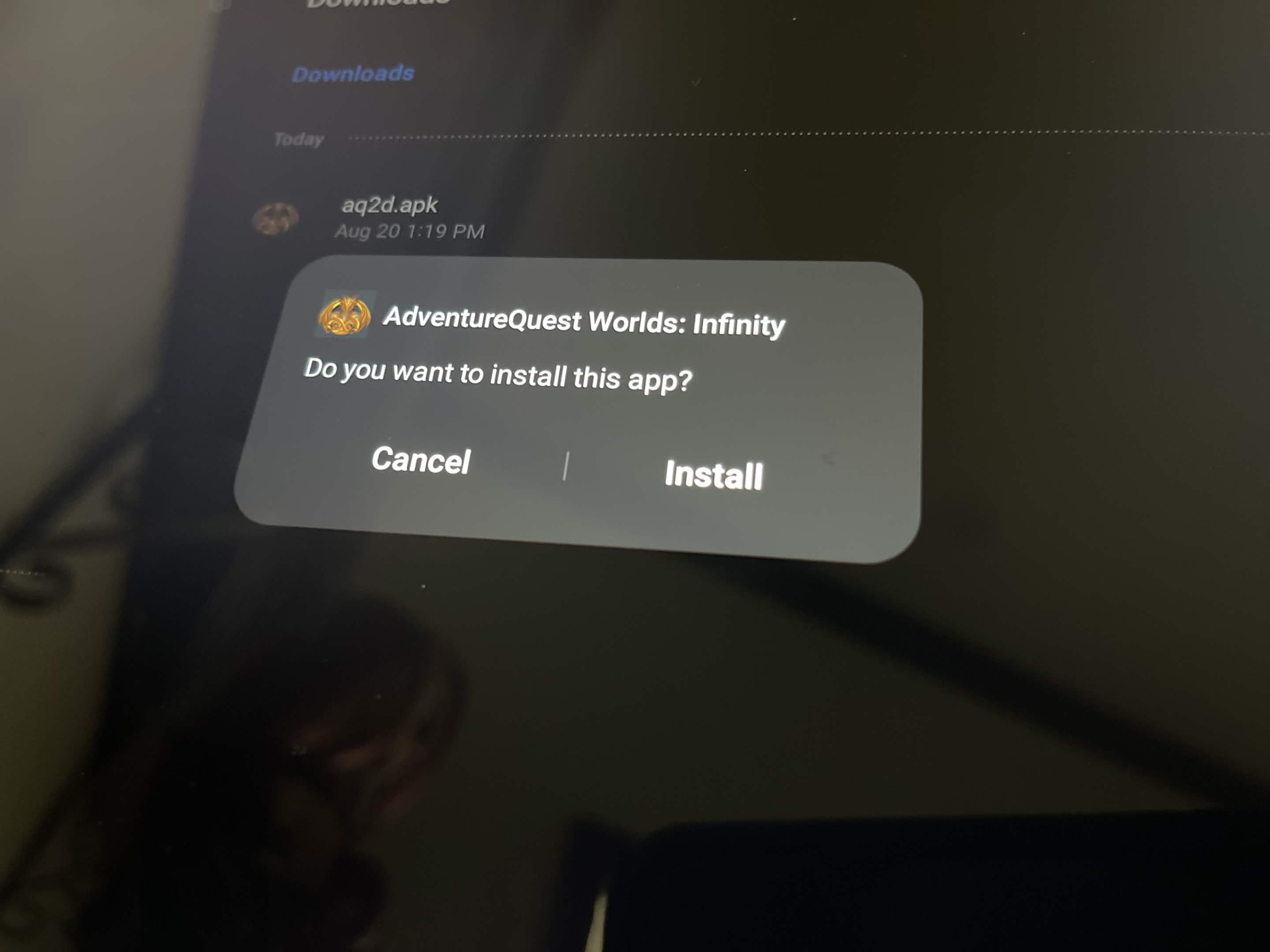
If you dismiss the notification, open your device’s Files, My Files, or Downloads app and tap the downloaded AQW: Infinity APK.
The first time you install an APK, Android may display a message stating that your browser or file manager is not allowed to install unknown apps.
This permission applies only to the selected app. It does not allow every app on your device to install software.
You can also launch the game later by tapping its icon in your app drawer or on your Home screen.
Some Samsung Galaxy devices have an additional security feature called Auto Blocker. If you see a message such as:
“Auto Blocker is on. Can’t install apps from unknown sources.”
Follow these steps:
After AQW: Infinity has been installed, you may turn Auto Blocker back on.
You may also need to open:
Settings → Security and privacy → More security settings → Install unknown apps
Choose the browser or file manager containing the APK and enable Allow from this source.

Google Play Protect may scan the APK because it was installed outside the Google Play Store. This is normal for an externally distributed alpha build.
If prompted, allow the security scan to complete and follow the options displayed on your device. You should not normally need to disable Google Play Protect.
If Android identifies the APK as harmful or completely blocks the installation, do not attempt to bypass the warning. Take a screenshot and send it to the AQW: Infinity alpha support team.
When a new alpha build is released:
You should not normally need to uninstall the previous build.
If Android reports that the new build cannot be installed because it conflicts with an existing package, uninstall the existing version and then install the new APK. Be aware that uninstalling the game may delete locally stored alpha-test data and settings.
For additional security, you may turn off the installation permission you enabled earlier:
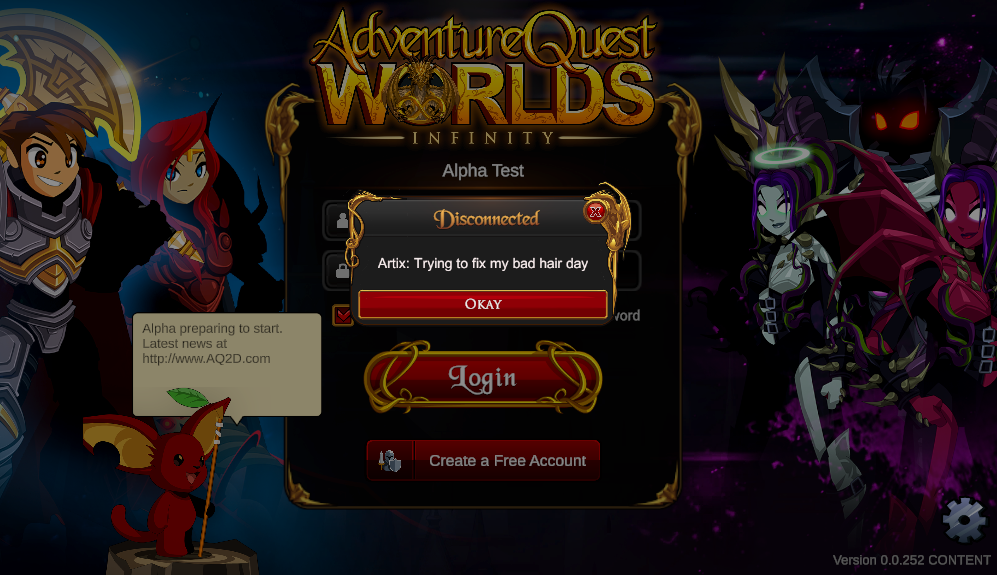
Try the following:
The download may be incomplete, or the build may not support your version of Android. Delete the APK, download it again, and retry.
Make sure you have enabled Allow from this source for the specific browser or file manager you used to open the APK.
Temporarily disable Auto Blocker under....

Please report the problem on the Artix Games Bug Tracker or read Aelious's handy guide and include
Thank you again for helping us create AdventureQuest Worlds: Infinity!